Add Dance: import a VRMA motion and music into AniMate
Once your avatars are imported and organized, you can make them move. In AniMate, a dance is not a character model. It is a reusable performance asset, usually made from one VRMA motion file and one music file. This tutorial shows how to import your own dance into Avatar Workshop and test it with a VRM desktop pet or anime desktop character.
Before You Start
Prepare two local files: a VRMA motion file and a music file. The VRMA file controls how the character moves. The music file provides the sound during playback. Before recording, streaming, or publishing a clip, check the usage terms for the motion, music, and character model.
- The motion file is a VRMA file suitable for AniMate.
- The music file plays correctly on your computer.
- You already have an avatar ready for testing.
- If you plan to publish the result, check the terms for the motion, music, and model.
Step 1: Understand what makes up a dance
In AniMate, a dance is best understood as motion plus music. The VRMA motion decides how the character moves. The music file decides what plays with it. Both are separate from the VRM model: the same dance can be tested with different avatars, but height, proportions, clothing, and hair can change how it looks.
After importing a dance, do not only check whether it plays. Test it with a real avatar and decide whether it works well on the desktop.
Step 2: Open Avatar Workshop and find the dance area
Right-click the running AniMate avatar on your desktop and open Avatar Workshop. Find the dance area and check whether it already contains built-in dances or dances you imported before. New dances are added from this area.
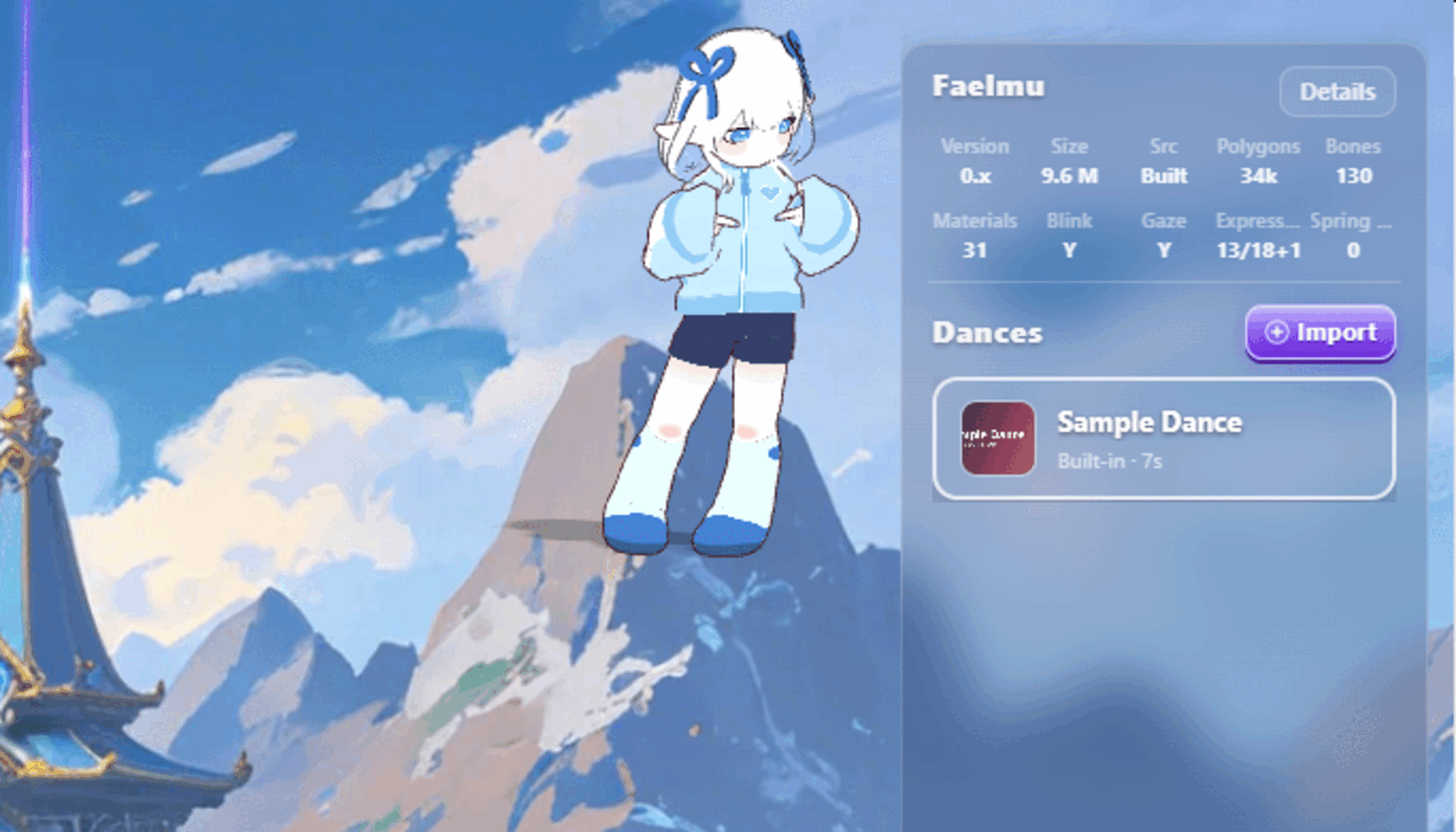
Step 3: Click Add Dance
In the dance area, click the Add button to open the dance import dialog. This dialog is for choosing the VRMA motion file, choosing the music file, and naming the dance. Fill in the core information first, then test the result with an actual avatar.
Step 4: Choose the VRMA motion file
Choose the VRMA motion file in the import dialog. A VRMA file is a motion file, not a character model. Do not select a `.vrm` avatar file as the dance motion. If the motion came from a creator page, resource community, or motion pack, keep the source link so you can check the terms later.
Step 5: Choose the music file
In the same dialog, choose the music file. It will be used together with the motion during playback. Clear file names help later, especially when you have multiple versions, short edits, or test tracks.
Step 6: Name the dance
Give the dance a name you can recognize later. It does not need to be long, but it should be clearer than a random file name. Examples: "Cute Wave Dance", "Short Test Dance", or "Fast Beat - Chibi".
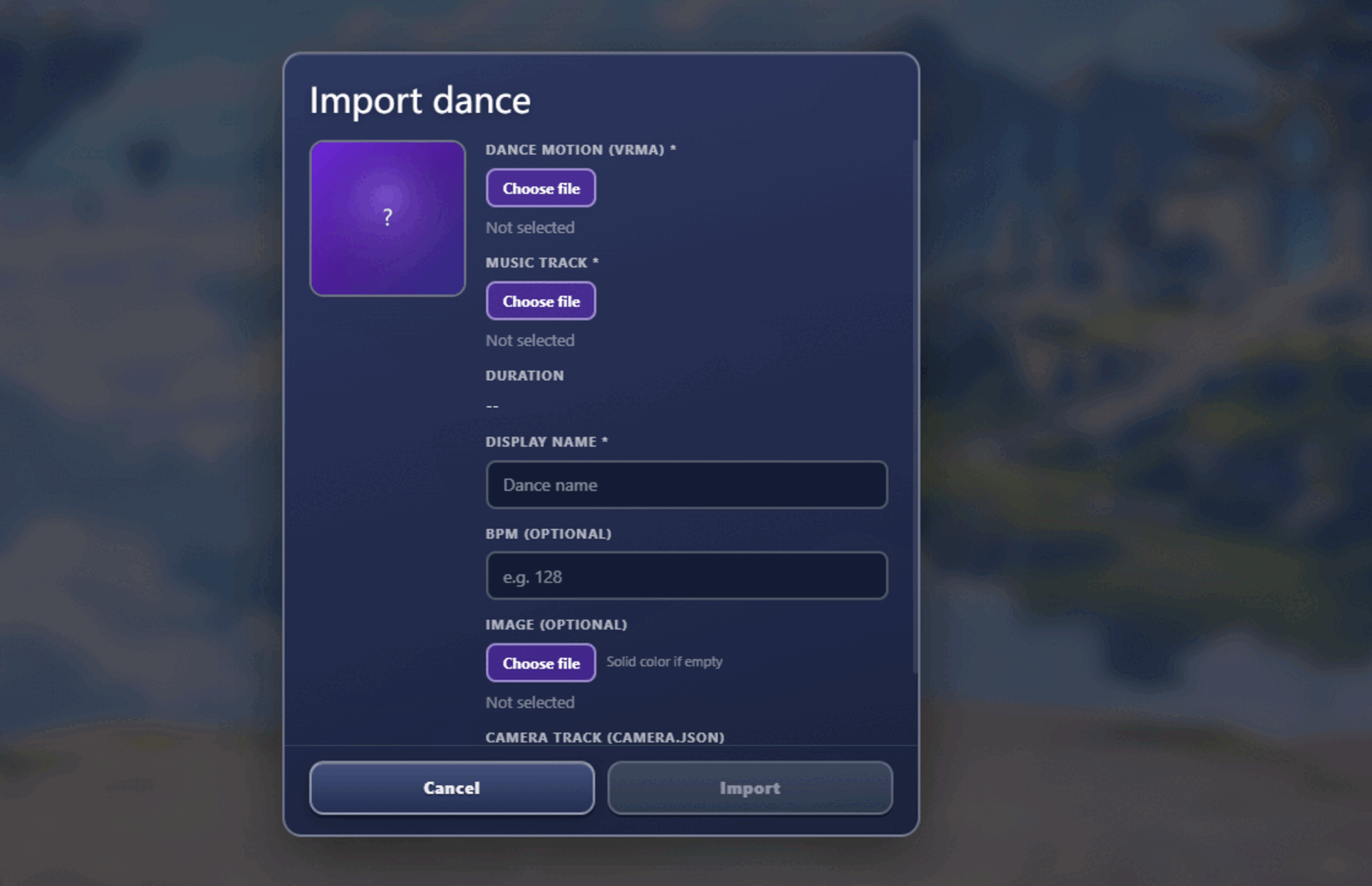
Step 7: Import the dance
Check the VRMA motion file, music file, and dance name. When everything looks right, confirm the import. The dance appears in the dance list, where you can choose it and test it with different avatars.
Step 8: Choose an avatar and test playback
After importing, test the dance with an avatar you already organized. Start with a stable avatar that has normal proportions and is not too heavy. During playback, check whether the motion feels natural, whether clipping appears, whether hair, skirts, sleeves, or accessories behave badly, and whether the music timing feels usable.
What to Check During Testing
- The motion plays normally without obvious freezing or snapping.
- Hands, legs, hair, clothing, and accessories do not clip too badly.
- The music and motion feel reasonably aligned.
- The avatar size and desktop position are comfortable to watch.
- The desktop does not become noticeably slow during playback.
FAQ
What is the difference between VRMA and VRM?
VRM is the character model: who appears on the desktop. VRMA is the motion file: how the character moves. When adding a dance, you need a VRMA motion file, not a `.vrm` model file.
Can one dance be used with different avatars?
Yes, you can test it with different avatars, but the result may vary. Height, body proportions, clothing, hair, and accessories all affect how the motion looks. Keep the combinations that look stable.
Why does the motion look strange?
The motion may not match the avatar's proportions. For example, a motion made for a taller character may look odd on a chibi avatar. Hands, feet, body balance, and turns can all feel off. Try a character with closer proportions.
Why does clipping happen during dancing?
Clipping usually means the motion and model are not perfectly matched. Large arm swings, turns, or crouches can make hair, skirts, sleeves, accessories, or body parts pass through each other. Different VRM models have different skeletons, physics, and clothing structure, so the same VRMA motion can behave differently on each avatar. Try a simpler outfit, fewer accessories, or a model whose proportions fit the motion better.
Why do the music and motion not line up?
The motion and music may not come from the same source, or the music version may be different. Use the matching music file when possible, or include the version in the dance name so you do not mix them up later.
Will a desktop pet dance make my computer slow?
Performance depends on model complexity, motion intensity, stage setup, and your device. For an always-on desktop companion, test with a lighter avatar before adding more complex dances or stages.
Next: add your own stage
After importing dances, you can add stages so the character has a better scene for performance.