Manage Avatar Library: organize VRM desktop pets with tags
One or two VRM models are easy to remember. A growing library of VRM desktop pets, VRoid avatars, anime desktop characters, and different outfit versions needs a better system. This tutorial focuses on one practical goal: use names, thumbnails, and tags so you can quickly find the avatar you want in Avatar Workshop.
When this tutorial helps
If you collect models from VRoid Hub, BOOTH, creator pages, or official model releases, the real problem often appears after the download: the model is somewhere in your library, but you cannot find the right one quickly. Tags are not decoration. They make filtering, testing, recording, dancing, and everyday desktop use faster.
- You have imported several `.vrm` characters or plan to import many VRM models.
- You want to filter avatars by source, purpose, style, or status.
- You want to pick a good avatar quickly before adding dances, stages, or desktop interactions.
Step 1: Start with a simple tag rule
Tags become harder to use when they are invented randomly. Start with three or four stable categories. For example, one character can have `VRoid`, `Desktop`, `Ready`, and `Lightweight` at the same time. That works whether you are organizing a VRM desktop companion library, anime desktop pets, or characters you plan to use with dances later.
| Tag type | Examples | Why it helps |
|---|---|---|
| Source | VRoid, BOOTH, official, creator, own model | Useful when you need to trace where a model came from or review its terms |
| Purpose | Desktop, dance, recording, stream, test | Useful when different situations need different avatars |
| Status | Ready, check later, heavy, favorite, recommended | Useful when you need to know which models are ready to use |
| Style | Chibi, anime, realistic, game character, OC | Useful when you want to choose by visual style |
Step 2: Add tags during import or editing
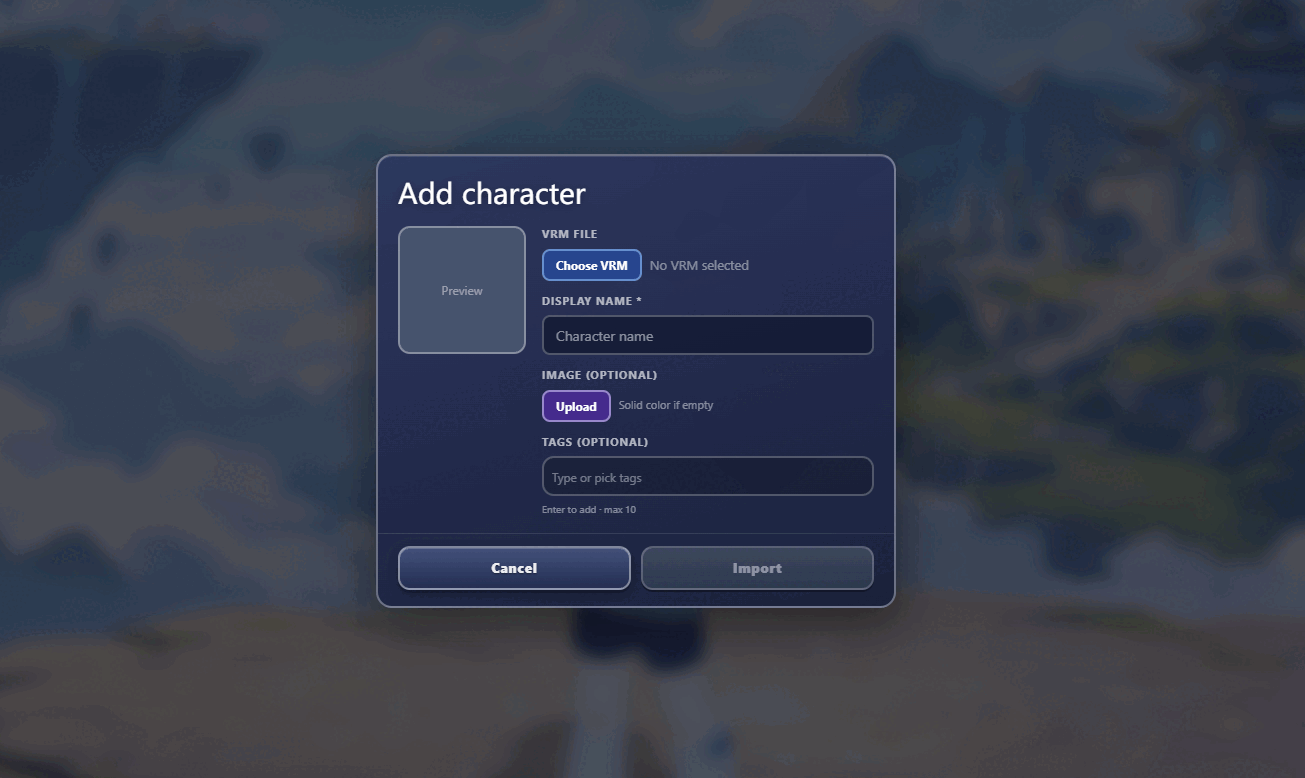
The easiest habit is to tag a character when you add it. Type a new tag and press Enter so it becomes a separate tag chip. If a tag already exists, choose the existing one instead of making a near-duplicate.
If you are importing many VRM models in a row, give them a small default set such as `VRoid`, `Check later`, and `Desktop`. After testing the model, replace `Check later` with `Ready`, `Heavy`, or a more useful status. This turns a folder full of favorite models into a searchable avatar library you can actually use.
Step 3: Filter avatars by tag
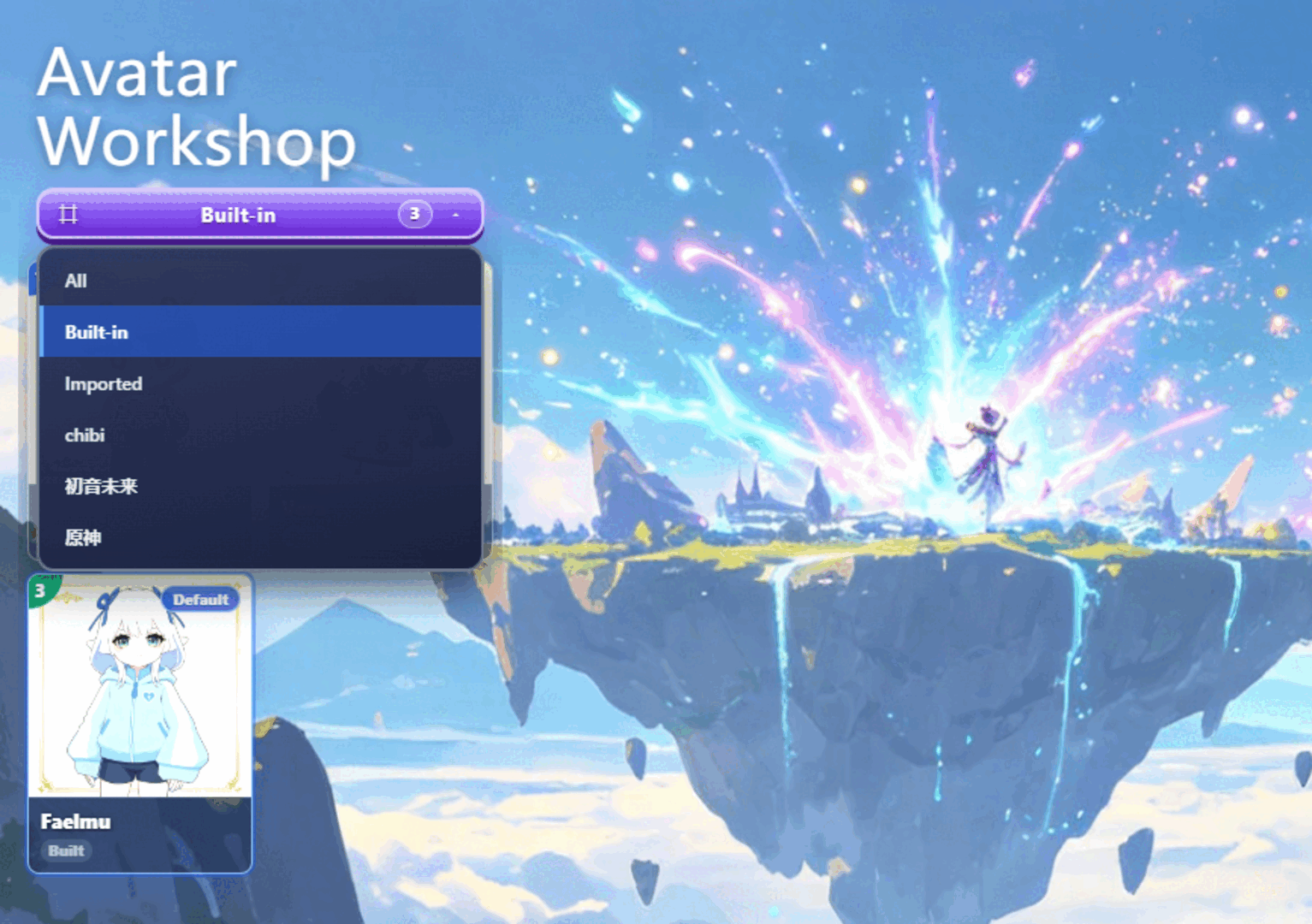
Back in Avatar Workshop, choose a tag such as `Dance` or `Lightweight`. The library should narrow down to the avatars that match the tag. This is the moment where tags start paying off: you no longer need to scan every card one by one.
Start with broad tags such as `Desktop`, then switch to `Chibi`, `Favorite`, or `Ready` when you need a smaller set. If the result is too large, the tag is probably too broad. If the result is empty, some avatar cards may still need tags.
Step 4: Right-click an avatar card to edit it
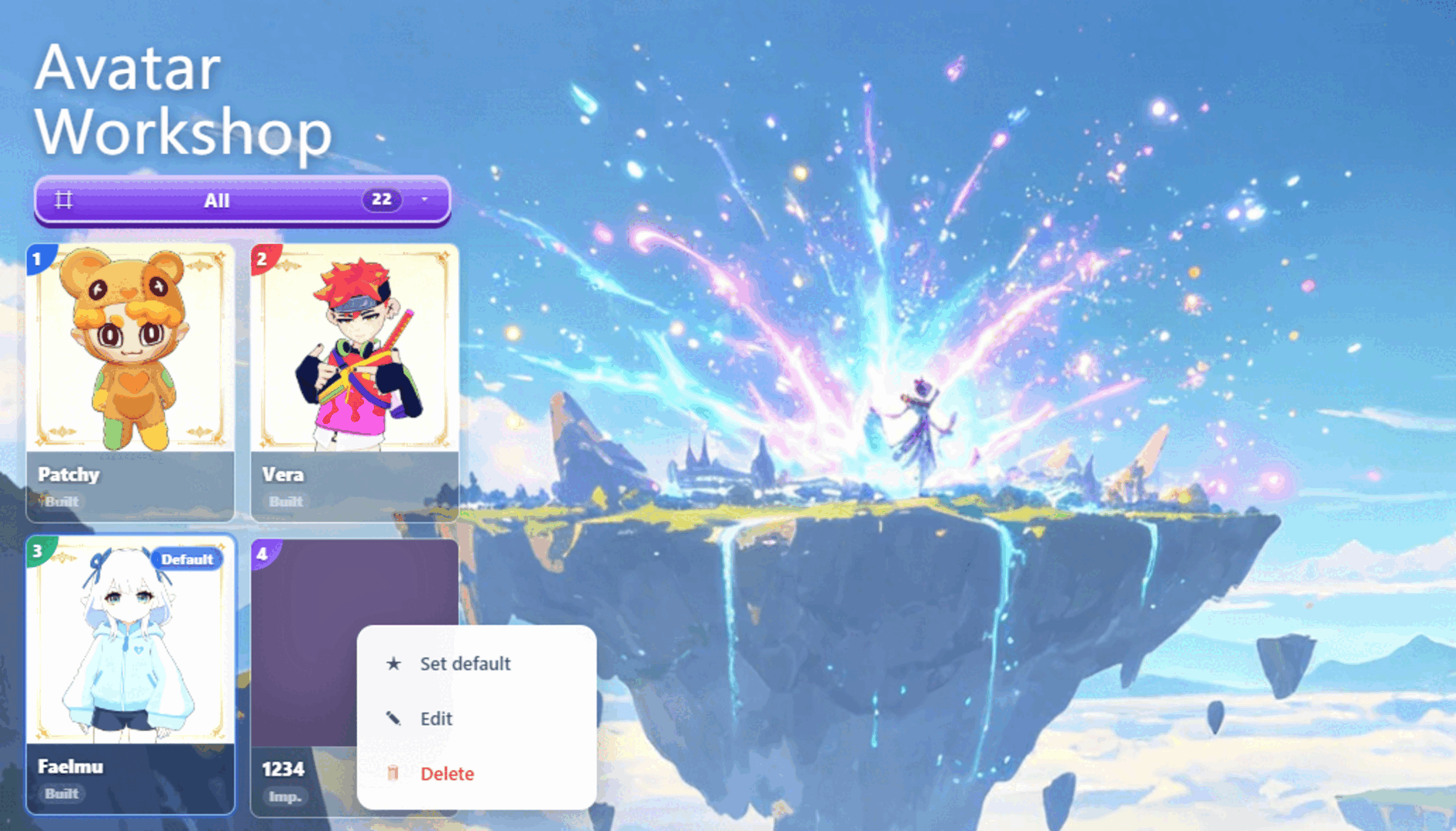
If you forgot to tag a character during import, or if the name or thumbnail is unclear, right-click the avatar card in Avatar Workshop and open edit. From there you can update the name, replace the thumbnail, add tags, or remove tags that no longer fit.
A good maintenance habit is to process `Check later` avatars in small batches. Open the card, decide whether the model is better for desktop use, dance testing, recording, or archiving, then save more accurate tags.
Step 5: Test whether your tags are useful
Do not stop immediately after adding tags. Try three quick checks:
- Select `Desktop`: can you quickly find characters that are comfortable for everyday desktop use?
- Select `Dance`: do you only see avatars that are suitable for dances and stages?
- Select `Check later`: can you find the models that still need cleanup?
If the result feels wrong, edit the avatar cards and adjust the tags. Tagging is not a one-time setup. It is a small library habit that gets more useful every time you import or test a model.
A practical starter tag set
If you are not sure where to begin, use this small set first. It is simple, but enough for a real VRM model library.
| Situation | Suggested tags |
|---|---|
| Newly imported, not tested yet | Check later, plus a source tag such as VRoid or BOOTH |
| Good for everyday desktop use | Desktop, Ready, Lightweight |
| Good for recording or sharing | Recording, Recommended, Anime or Chibi |
| Heavy or unstable model | Heavy, Check later |
| Good for dance workflows | Dance, Ready, Recommended |
FAQ
Should I create lots of tags?
No. Too many tags become another kind of clutter. Start with source, purpose, status, and style. Add more only when you repeatedly need them.
Can I add tags to avatars I already imported?
Yes. In Avatar Workshop, right-click the avatar card and open edit. You can update the name, thumbnail, and tags there.
Why does a tag not appear in filtering?
After typing a tag, press Enter so it becomes a separate tag chip. Then make sure the import or edit is saved.
I have hundreds of VRM models. Where should I start?
Do not try to perfect everything at once. First add `Check later` and source tags to the collection. Then clean up the avatars you use most often with `Desktop`, `Dance`, and `Ready`.
Is tag management useful for VRM desktop pets?
Yes. If you keep importing VRM models, VRoid avatars, or anime desktop characters, tags help turn a model collection into a usable avatar library. It becomes easier to switch desktop pets, record clips, test dances, or pair a character with a stage.
Next: add your own dance
Once the avatar library is organized, you can pair the right avatar with a VRMA motion and a music file.