Read this guide in English · 中文 · 日本語
Add Stage: give your VRM desktop pet a better scene
Once your avatar is imported and organized, a stage gives it a place to live. In AniMate, a stage is more than wallpaper: it is the scene that helps a VRM desktop pet, anime desktop companion, or desktop character feel grounded. A good stage adds depth, keeps the character readable, and works with the way your screen is actually used.
What makes a good stage?
The best stage is the one that lets the character stand naturally. If the background is only a flat pretty picture, the character looks pasted on. If the image has a clear foreground floor, platform, windowsill, or stage edge, plus a little depth in the background, the desktop character feels much more alive.
A simple rule helps here: the character should be the focus, and the stage should support the pose. That is why 2.5D backgrounds work so well for desktop pets and character showcases.
What kind of image works best?
Good stage images usually have a visible standing area in the front and enough depth behind it. Think of a classroom floor, a window ledge, a room corner, a small platform, or a city lookout. Those scenes make it easier for the character's shadow to make sense.
- Use a foreground plane the character can stand on.
- Keep the composition clear, with enough empty space around the feet.
- Choose a scene with perspective, not a flat poster look.
- Keep text, logos, and watermarks to a minimum.
- Match the image ratio to your actual screen when possible.
How to prompt AI art for a stage
If you use AI image generation, do not ask only for "a beautiful anime background". Ask for a 2.5D stage or a scene with a clear foreground floor plane. That wording makes it more likely that the result will have a place for the character to stand and enough depth to feel natural.
- Say "2.5D anime stage background".
- Ask for a "visible foreground floor plane".
- Ask for a "clear standing area" and "layered depth".
- Keep the composition clean and avoid text or watermarks.
- Leave the center or lower center open for the character.
A useful prompt is: 2.5D anime stage background, clear foreground floor plane, visible standing area, soft perspective, layered depth, clean composition, no text, no watermark, horizontal layout, match my screen aspect ratio.
Image size and resolution
Do not lock yourself to one fixed number. The best stage usually matches the ratio of your real screen. If your display is 16:9, make the stage 16:9. If you use a wide monitor or a different secondary display, prepare a version that fits that screen instead.
Resolution should be high enough for the area you actually see, but not so huge that the file becomes wasteful. A stage that is too small will blur when scaled up. A stage that is much larger than needed can cost more memory and storage without making the scene better.
What kind of video works best?
Video stages should feel calm and loop smoothly. Fast cuts, flashing subtitles, and camera shake make the character harder to read. A gentle room loop, a slow city light scene, or a subtle animated background usually works better than a busy clip.
- Prefer smooth looping video.
- Keep camera motion small.
- Make sure the standing area stays stable.
- Avoid flashing text and hard scene cuts.
- Use video when you want atmosphere, not when you want to steal focus.
Open Avatar Workshop and add the stage
Right-click the running AniMate avatar on your desktop and open Avatar Workshop. Find the stage area and click Add. This opens the import dialog for your background image or video.
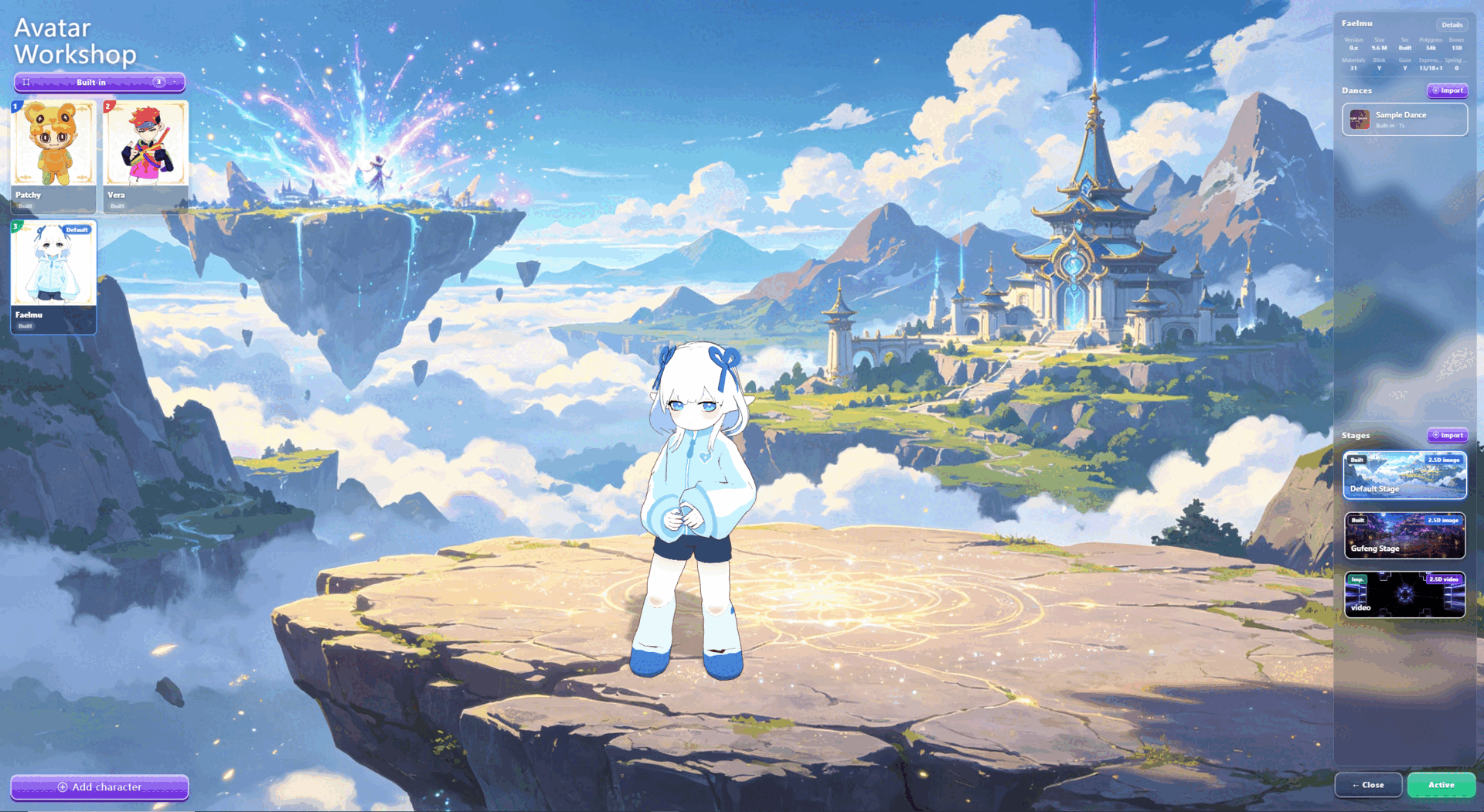
Choose the stage file
Select the image or video you prepared. If the scene makes the character look like it stands on a clear plane, it is probably a good fit. If the character feels like it is pasted onto a wall, the image is usually too flat or too crowded.
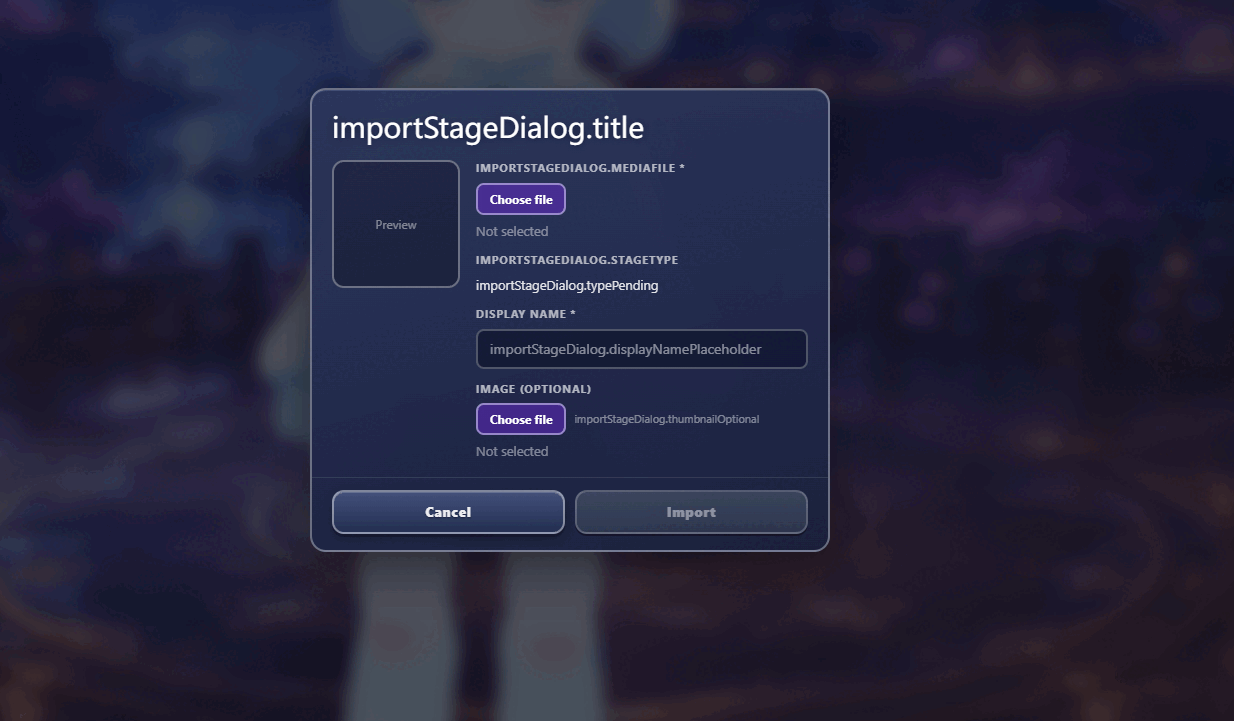
Name the stage
Give the stage a name you can recognize later, such as "Clean Classroom", "Night Window", or "Soft Loop Stage". Clear names matter once you start collecting multiple stages for different moods and screens.
Confirm and preview
Check the file and the name, then confirm the import. After it appears in Workshop, pick a character and preview the result. A good stage keeps the character readable, makes the shadow feel natural, and does not fight the model's colors or silhouette. Use the checklist below to judge whether the stage is ready for daily use.
FAQ
Is image or video better?
Images are easier for stable, everyday backgrounds. Videos are better when you want motion and atmosphere. Both work if they support the character instead of competing with it.
What image ratio should I use?
Use the ratio of the screen you actually plan to show the stage on. There is no need to force every stage into one exact resolution.
Why do 2.5D stages work so well?
Because the character is a 3D model. When the background has a visible floor plane and some depth, the character feels like it is actually standing in the scene.
Can I use AI-generated art?
Yes, and it is often a good fit. Just prompt for a standing area, a foreground plane, and a clean composition so the result behaves like a stage, not just a poster.
Does a flashy background make the desktop feel better?
Not usually. A good desktop stage is readable first. If the background is too busy, the character becomes harder to enjoy and harder to use every day.
Next: check model info
Once the stage is ready, you can inspect your model to understand blinking, expressions, clipping, and performance issues.