Model Info: check VRM details before you guess
A desktop pet can look fine at first glance and still have problems under the hood. One model blinks, another does not. One dances cleanly, another clips through clothing. One feels light on the desktop, another lags as soon as you add motion or a stage. If you want to troubleshoot a VRM desktop pet or anime desktop companion, check the model info before you start reimporting things.
When should you open model info?
If the avatar is already imported and visible, but the behavior is off, model info is the fastest place to start. It helps you tell whether the issue is the model itself, the motion you paired with it, the scene complexity, or your computer's limits.
- The character does not blink or smile.
- The motion looks weird or clips through hair, clothing, or accessories.
- The model looks fine in preview but feels heavy on the desktop.
- You want to compare which avatars are better for everyday use.
Step 1: Open the character in Avatar Workshop
Open Avatar Workshop and select the avatar you want to inspect. If you imported several VRM models, start with the one that is giving you the most trouble. That makes the info easier to connect with what you are actually seeing.
Step 2: Check the info in the top-right corner
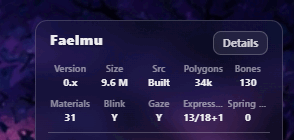
Once the character is open, look at the info entry in the top-right corner of the preview. This is the quick check for the current model name and the basic identity of the avatar.
If you manage a large library of VRM desktop pets or anime desktop companions, this small step matters. It keeps you from reading the wrong model's details.
Step 3: Open the Details panel
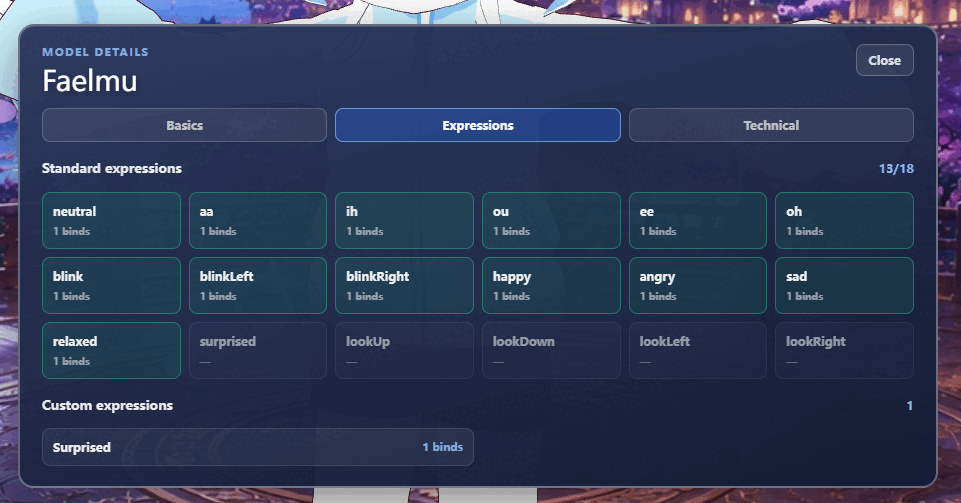
Click Details to open the full information panel. The exact fields may vary by version, but the point is the same: this is where you can judge structure, expression support, and resource cost more clearly.
Start with the problem, not the fields
Model info is not something you memorize for fun. It is a troubleshooting tool. If the desktop lags, look at model weight first. If clipping shows up, look at bones, physics, and spring bones. If blinking or smiling is missing, look at the expression data first.
- Lag or slow desktop: check polygon count, materials, textures, and file size.
- Clipping during dance: check bones, spring bones, physics, hair, and clothing structure.
- No blinking: check for blink or eye-close expressions.
- No smiling or changing expressions: check for joy, smile, happy, and related blendshapes.
- Odd rendering: check materials, transparency, and texture setup.
Problem 1: Why is the desktop laggy?
Lag often comes from a model that is too heavy. "Heavy" does not only mean the file is large. It can also mean too many polygons, too many materials, big textures, complex transparency, or a lot of physics parts. Add motion, a video stage, and other apps, and a weaker computer will feel it quickly.
Look at the model file size, polygon count, material count, texture count or texture size, and physics or spring bone count. If the numbers are high, try a smaller and lighter VRM model first. If the lightweight model is smooth and the heavy one is not, the problem is probably model complexity, not the import flow.
- Test idle mode first, then dance playback.
- Temporarily disable the stage and see if the lag improves.
- Compare a smaller, lower-poly, simpler model with the heavy one.
- If the lighter avatar works well, the heavier one may be a bad fit for always-on desktop use.
Problem 2: Why does clipping happen during dance?
Clipping usually means the motion and the model shape are not perfectly matched. Long hair, wide sleeves, skirts, tails, layered accessories, and big decorations all make clipping more likely when the avatar turns, crouches, or raises its arms.
Look closely at the physics and spring bone data. If the avatar has many moving parts but the collision and physics setup do not match the motion, clipping will show up fast. A VRMA motion can look fine on one avatar and clip heavily on another.
- Try a dance with smaller movement first.
- Compare against a simpler outfit with fewer accessories.
- Check where the clipping happens: hair, sleeves, skirt, arms, or decorations.
- If only one model clips, the model fit is probably the issue.
Problem 3: Why does the character not blink?
If the character does not blink, check whether the model actually has eye-related expressions. VRM avatars usually blink through expressions or blendshapes. If there is no blink, eye-close-left, or eye-close-right data, the desktop interaction may not have anything to trigger.
Try another model that you know blinks correctly. If that one works, AniMate is fine and the current model probably lacks the right expression setup.
- Look for blink or eye-close expressions in the details panel.
- Make sure left and right eye closures are both supported.
- Compare with a model that already blinks well.
- If the model never had blink data, you need a different model or an edited one.
Problem 4: Why does the character not smile?
No smile, or almost no expression change, is often an expression preset issue. A model can look great and still ship with only a few expressions. Some expressions are named differently, and some are so subtle that they barely read on the desktop.
Check for joy, happy, smile, angry, sad, and similar presets. If the model only has a handful of expressions, AniMate can display it, but it cannot invent emotions that are not there.
- Confirm that basic smile and blink expressions exist.
- If the expressions are there but weak, the setup may be too subtle.
- Compare against a model with a fuller expression set.
- For long-term desktop use, pick a model with reliable expression presets.
Problem 5: Why does the render look different from the preview?
If the color feels too bright, too dark, or oddly transparent, check the material and texture setup. Different models use different materials, transparency styles, and texture sizes, so the same avatar can behave differently across render environments.
At this point, the question is not just whether the model looks good. You also want to know whether it is stable enough for everyday desktop use. Complex transparency, large textures, and too many small decorative parts can make the model harder to use and heavier to run.
How to judge whether a model is worth keeping
The best desktop pet is not always the most detailed one. The one you keep is usually the one that stays smooth, readable, and pleasant to use every day. Look for balanced file size, enough expressions, clear silhouettes, stable motion, and acceptable performance on your machine.
- Does idle mode feel smooth?
- Does the usual dance playback stay stable?
- Can you still read the face after shrinking the character?
- Do the expressions match the kind of desktop companion you want?
- Does it still look clean when paired with your usual stage?
FAQ
Is more info always better?
Not always. More data often means a more complete model, but it can also mean more complexity. For desktop use, stability and readability matter just as much as richness.
Is it AniMate's fault if the model has no expressions?
Usually not. In many cases, the model simply does not contain the expression data you want. A better comparison model is the quickest test.
Why does the same motion look different on different avatars?
Because body proportions, bones, clothes, hair, and accessories all differ. The same VRMA motion interacts with each avatar's structure in its own way.
How do I tell if a model is too heavy?
Look at file size, polygon count, materials, textures, and physics. Then test it on the desktop with idle mode, a dance, and a stage.
Do VRoid models need this check too?
Yes. Once a VRoid model becomes a VRM desktop pet, the same issues can show up: polygon count, textures, expressions, and physics still matter.
Next: desktop interactions
After you understand the model, you can move it around, resize it, and use chibi mode, windowsill poses, and quiet mode.