Desktop interactions: the questions people ask most
Once your character is on the desktop, the daily questions start. How do you move it? How do you resize it? How do you get it onto a windowsill or taskbar? How do you switch chibi mode, dance, or quiet mode? This page is built as a quick FAQ, so you can jump straight to the answer you need.
Where is the desktop menu?
Right-click the running AniMate avatar on your desktop. That menu is the main entry point for Workshop, settings, and character actions. Most desktop companion workflows start there.
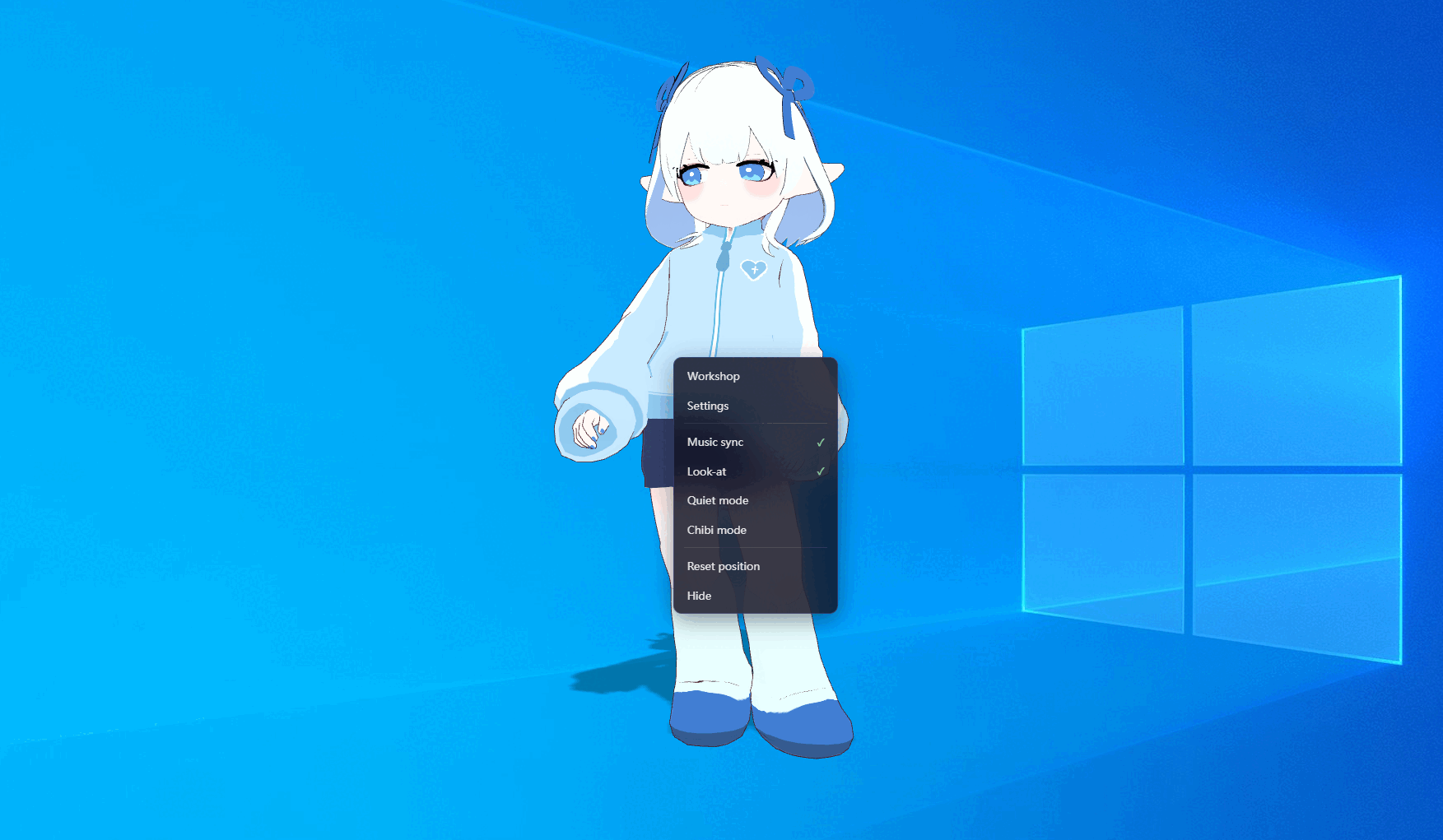
How do I move the character?
Click and drag the body of the character to a new spot, then release. Try to drag the visible body area instead of transparent space. A good daily spot is near the screen edge, next to a browser window, or beside the taskbar without covering anything important.
How do I make it larger or smaller?
Hover the character, hold Ctrl, and use the mouse wheel. Scroll up to make the avatar bigger, or down to make it smaller. Larger is useful for recording or showing off a dance. Smaller is better for everyday desktop use, work, and study.
- Larger works well for recording and dance demos.
- Smaller works well for always-on desktop use.
- If the face becomes too small to read, make it a little larger and move it to a corner.
- If it blocks a window, shrink it first and then reposition it.
How do I keep it from blocking the desktop?
Usually you solve this by shrinking it first and then moving it toward the edge of the screen. AniMate uses a transparent overlay, so the empty area around the character does not behave like a normal window. Still, the body itself takes visual space, so keep it away from things you click all the time.
How do I put it on a windowsill?
Pick a pose that fits a ledge or seated surface, then move the character to the top edge of a window or another surface that visually reads as a sill. Fine-tune the size until the body or legs visually rest on the edge. The trick is not perfect object detection; the trick is making the scene feel believable.
How do I make it lie on a windowsill?
If your model has a prone, resting, or lying pose, switch to that first. Then move it closer to the edge and adjust the size. Lying poses usually need a bit more space than sitting poses, so leave room for the body to stretch across the ledge without covering too much of the screen.
How do I place it on the taskbar?
Move the character near the taskbar and shrink it until the body visually fits along the top edge. The taskbar still needs to stay usable, so do not park the character where you constantly click. If you hide the taskbar automatically, you can place the avatar a little lower.
How do I use Chibi Mode?
Open settings from the right-click menu and turn on Chibi Mode. It works best when you want a smaller, cuter version of the desktop companion. Not every model suits it equally well, so check the face, proportions, and clothing after switching.
How do I make it dance?
If you already imported dances, open the Workshop and choose one to play. Dancing is great for demos, clips, and music sessions, but it can be distracting during work. If the motion feels wrong or clips badly, go back to the model info and dance tutorials.
How do I stop the dance?
Go back to the dance controls and stop playback. That returns the character to idle or quiet mode. If you only need a short break, shrinking the character and moving it to the edge also works.
How do I use quiet mode?
Quiet mode is for work, study, meetings, and any time you want the character to stay nearby without demanding attention. It is not about hiding the avatar completely. It is about turning the interaction level down so it behaves more like a calm desk companion.
FAQ
Can the character block my clicks?
The overlay is transparent outside the character body, so you can usually click around it. If a spot keeps getting in your way, move the avatar a little or shrink it a little.
Why does the right-click menu sometimes miss?
Make sure you are right-clicking the character body, not the transparent empty area. If the model is very small or the pose is wide, make it a bit larger first.
How do I restore a comfortable position?
Just drag it back. It is usually easier to set the size first and then fine-tune the position.
Next: activate the full version
If you already bought AniMate, the next step is to activate it with your order number.