Activate the full version with your order number
After you buy AniMate, you receive an order number from the purchase channel. Use that number to activate the full version. You can activate from the license page in Settings, or from the Add Character dialog when AniMate asks for activation during import.
What you need before you start
Keep the order number ready. It usually comes from the purchase page, payment record, confirmation email, or order history in the channel where you bought AniMate. Copy it exactly so you do not lose a character or add extra spaces.
Path 1: activate from Settings
Right-click the running AniMate avatar on your desktop and open Settings. Find the license or activation page, then paste the order number into the input field.
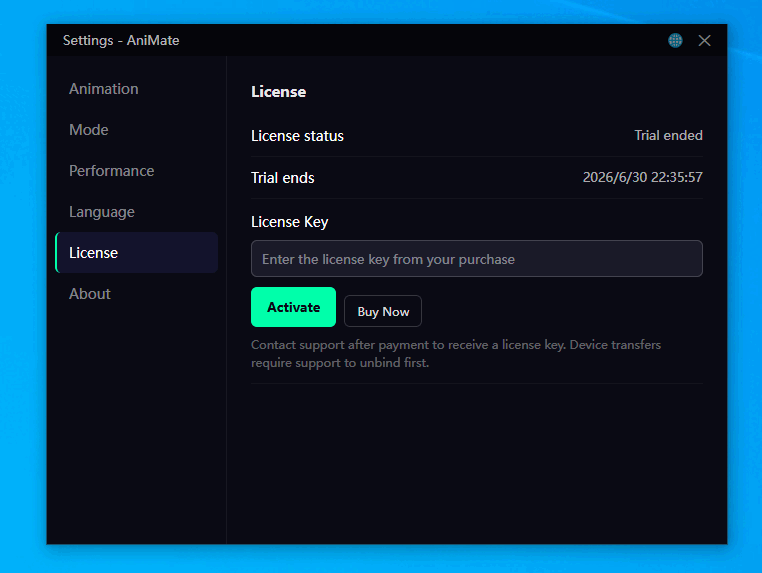
Enter the order number
Paste the full order number and click Activate. If the page supports an order number, activation code, or similar field, follow the label on screen. Avoid copying extra spaces or cutting off the start and end of the number.
Path 2: activate from the Add Character popup
If you are still in the middle of adding a model, AniMate may show an activation popup when you click Add Character in Avatar Workshop. That popup can also finish the activation.
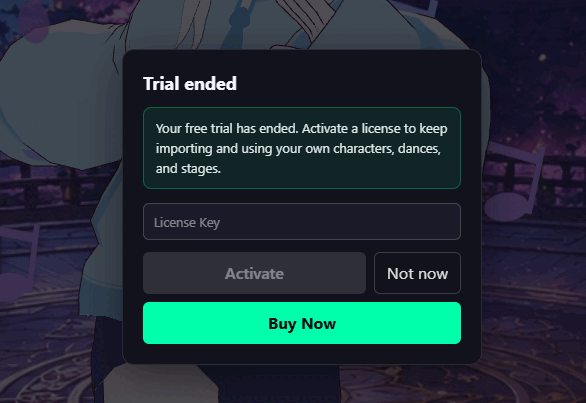
Finish activation
Enter the order number or activation information, then click Activate. Once the full version is active, continue the import flow if you were adding a character, or return to Workshop to test models, dances, and stages.
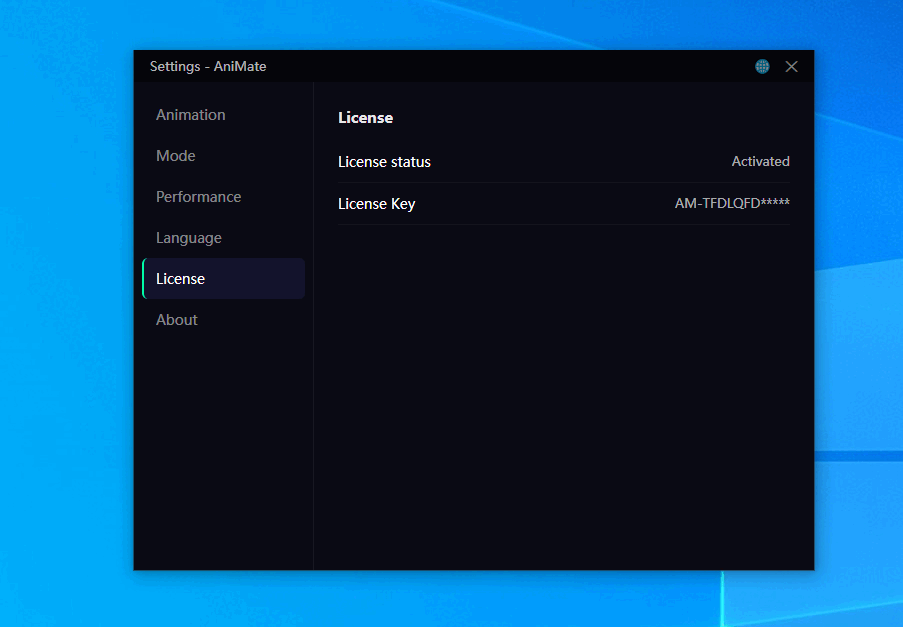
FAQ
I cannot find my order number. What should I do?
Check the order page, payment record, purchase confirmation, or email from the channel you used to buy AniMate. If that still does not help, contact [email protected] with the purchase email and approximate order time.
What if activation fails?
First make sure the network is working, then check whether you pasted the full order number. Extra spaces and missing characters are the usual suspects.
Which activation path should I use?
Either one works. Use Settings if you want to activate first. Use the popup if you hit the activation prompt while importing a model.
What if I uninstall and reinstall AniMate?
You can usually activate again with the same order number after reinstalling. Open the license page in Settings or use the activation popup and enter the order number again.
What if I reinstall my operating system?
After an OS reinstall, you may need to activate again. Reinstall AniMate, then use the same order number on either activation path. If it still fails, contact [email protected] with your order details.
Can I move the license to a new computer?
Not as a simple copy-and-paste move. A new computer is not a drop-in replacement for the original activation environment. If you need help after switching machines, contact [email protected] and include your order details.
Next: switch the interface language
After activation, you can set AniMate to the language you actually want to use every day.