Switch Language: set AniMate to the interface you prefer
AniMate supports multiple interface languages. If you prefer to use the app in English, Chinese, Japanese, or another supported language, you can change it in Settings. This is useful right after install, or whenever you hand the app to someone who uses a different language.
Step 1: Open Settings
Right-click the running AniMate avatar on your desktop and open Settings. Language settings usually live next to other core settings like activation and basic behavior.
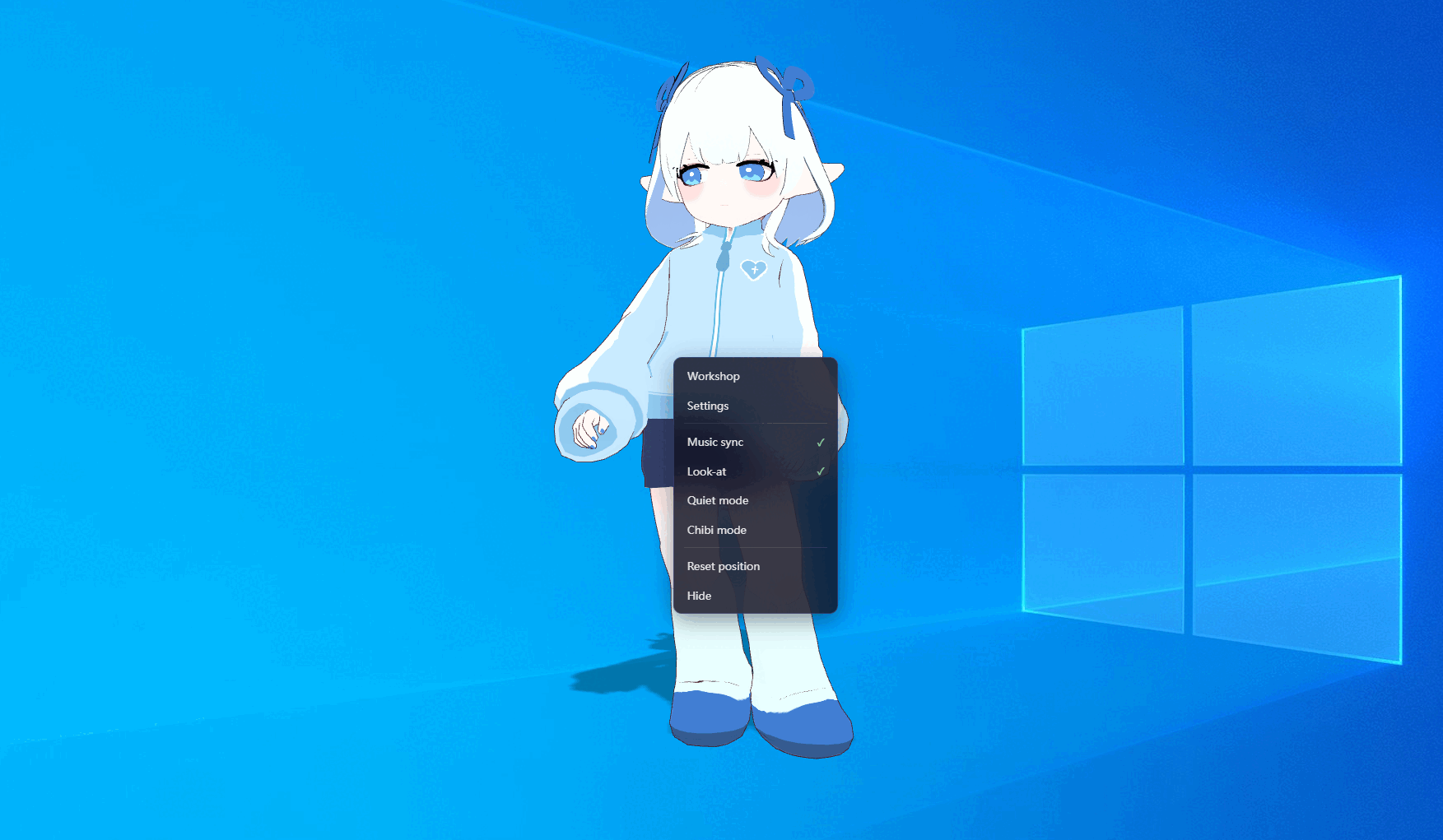
Step 2: Find the language option
Look for the language or Language setting in the panel. If the current interface is not easy to read, use the globe icon, the dropdown label, or the visible language name to spot it.
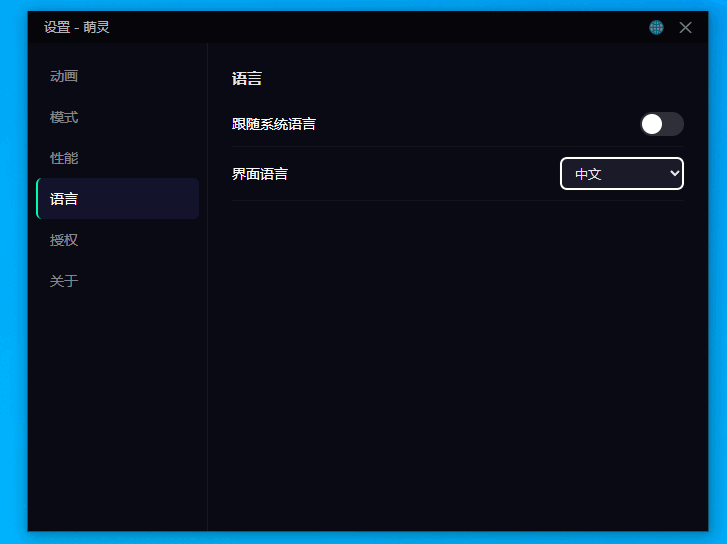
Step 3: Choose your language
Select the language you want to use, such as English, Chinese, or Japanese. The interface updates immediately, so you can see the change right away as soon as you click a new language.
FAQ
Can I see the change immediately?
Yes. Language switching is live, so the interface updates as soon as you choose a new language.
Is the website language the same as the app language?
No. The website language controls the guides and landing pages. The app language controls the AniMate interface inside the program.
Will this affect my imported VRM desktop pets?
No. Language settings only change the app interface. Your imported models, dances, stages, and desktop characters stay where they are.
Can I switch back to English later?
Yes. Go back to the same language setting and choose English again.
Tutorial basics complete
You now know how to import models, organize avatars, add dances, add stages, manage desktop interactions, activate the app, and switch languages.